Tag Archives: Database Install

Oracle Database 12c on Oracle Linux 6 – Step 4: Install Oracle Linux in the Virtual Machine

Part of this series of posts: Oracle Database 12c on Oracle Linux 6

04-01

Click Start.

04-02

You can click the message and check the Do not show this message again checkbox and then click the little blue x in the top right hand corner. Type Enter to select the Install or upgrade an existing system.

04-03

Again, you can click the message and check the Do not show this message again checkbox and then click the little blue x to dismiss the message. Use the Tab key to move the select to Skip and press Enter.

04-04

Click Next.

04-05

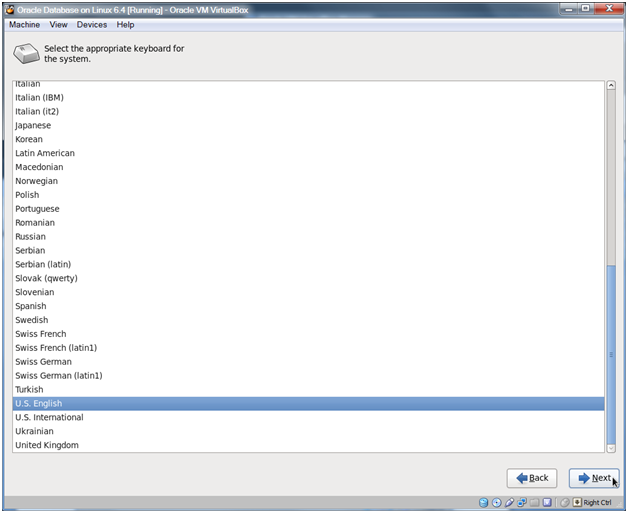
Click Next.

04-06

Click Next.

04-07

Click Next.

04-08

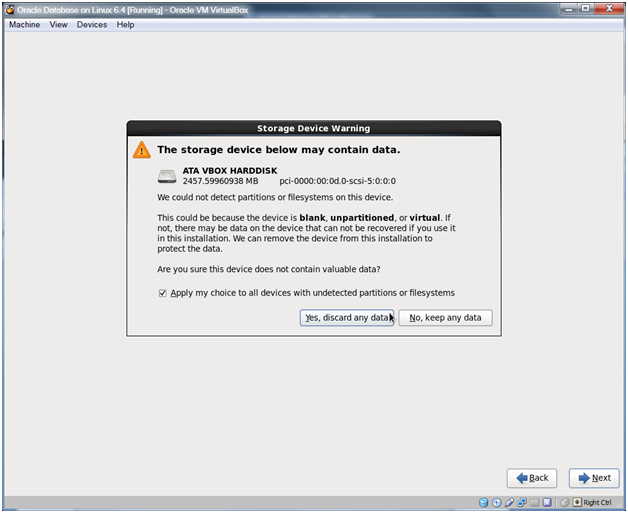
Click Yes, discard any data.

04-09

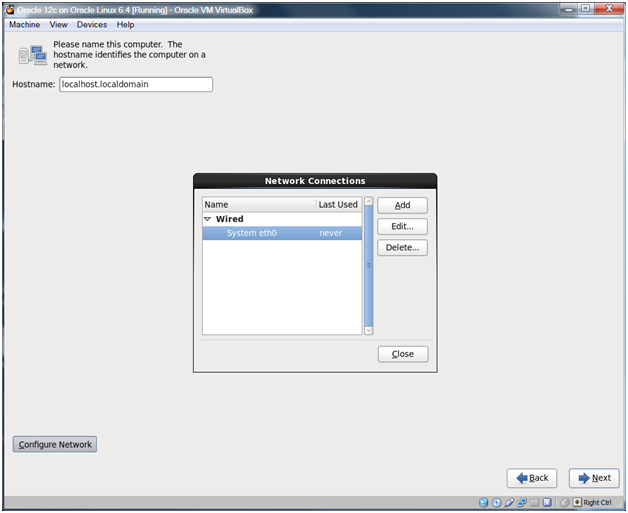
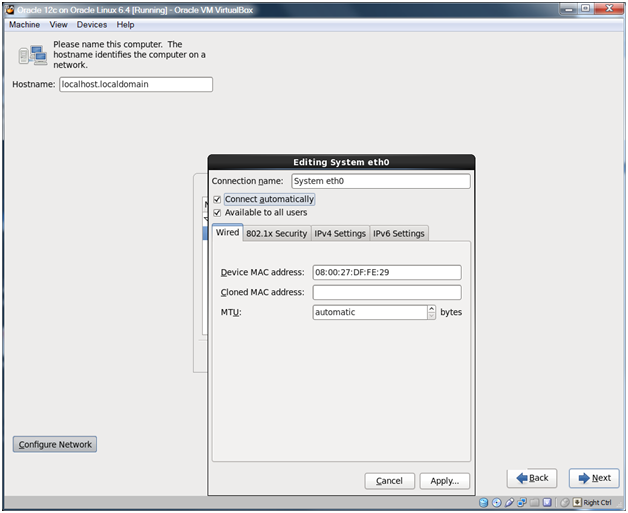
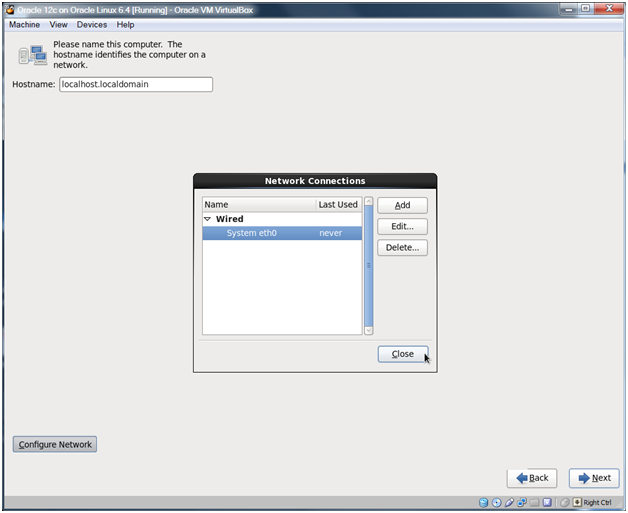
Click Configure Network, select the System eth0 Network Connection and click Edit…
04-10

Check the Connect automatically selection and click Apply…
04-11

Click Close.

04-12

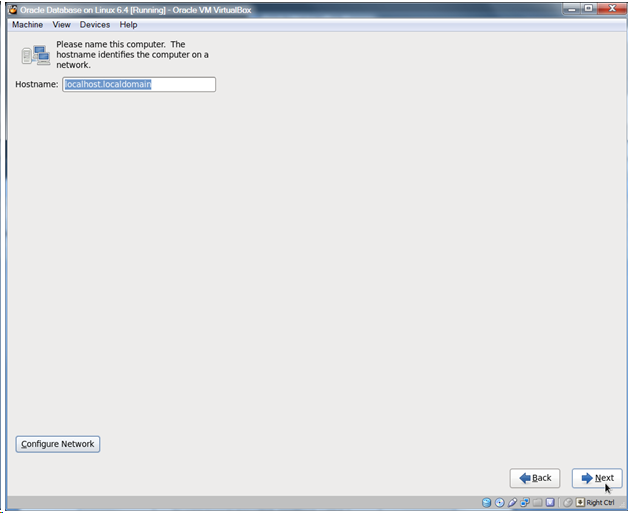
Click Next.

Note:

You could change the name of the machine here if you wish, but the guide assumes that you’ve left the default of localhost.localdomain.
04-13

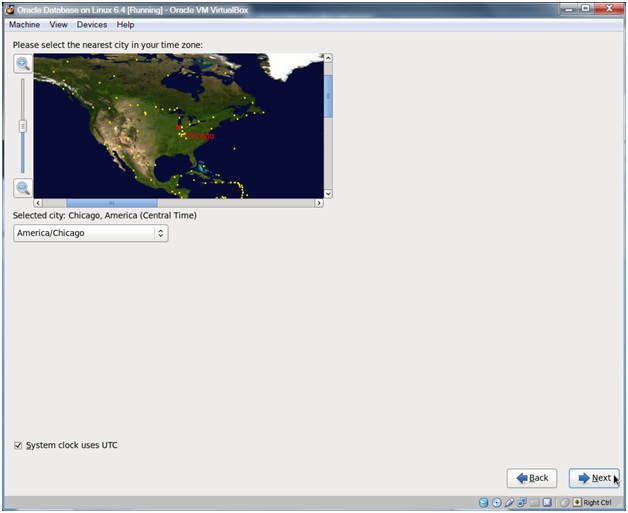
Select a city in your time zone and click Next.

04-14

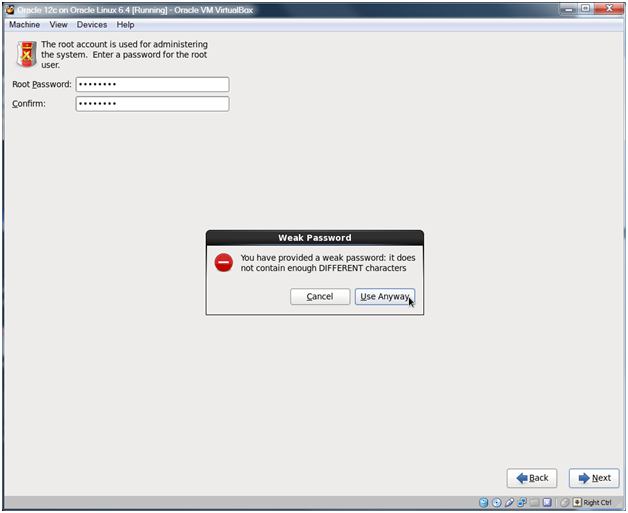
Enter a password for the root user and click Next.

Note:

I use rootroot as the password. We’ll change it to root after we have installed. This generates the below alert.
04-15

Click Use Anyway.

04-16

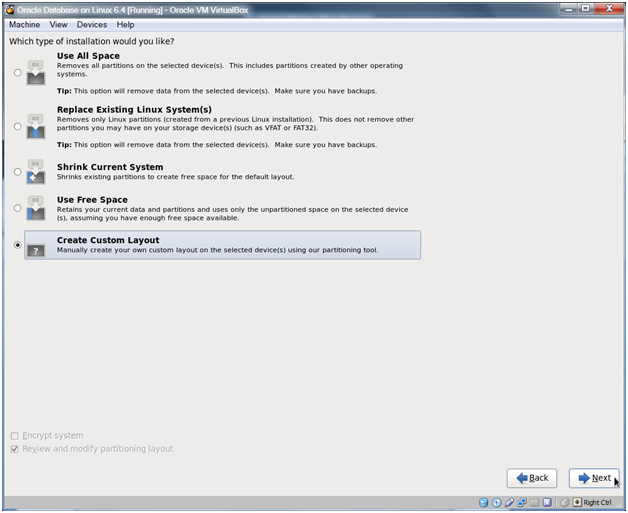
Choose Create Custom Layout and click Next.

04-17

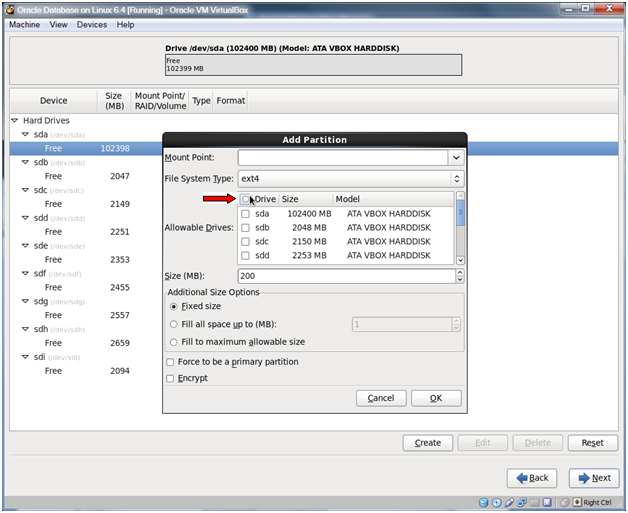
Select the Free partition under sda and click Create.

04-18

Choose Standard Partition and click Create.
04-19

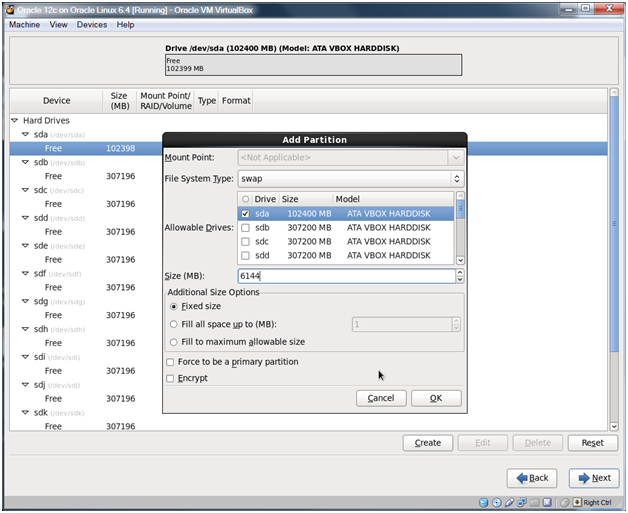
Use the check box next to the Drive to deselect all drives.
04-20

Change the File System Type to swap, check sda, and set the size to 6144 and click OK.

Note:

I used 6144 because I set my memory size to 6 GB (6144 = 1024 x 6). If your memory size is 4 GB or more you can set this to your memory size. If your memory size is less than 4 GB you can set this to double your memory size.

04-21

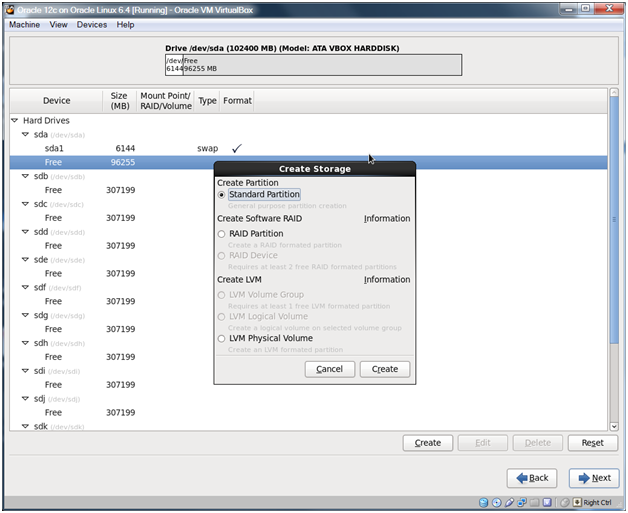
Select the remaining Free space on sda and click Create.
04-22

Choose Standard Partition and click Create.

04-23

Use the Mount Point dropdown and choose / as the mount point. Again, deselect all the drives and check sda. Choose Fill to maximum allowable size in the Additional Size Options box. Check the Force to be a primary partition box and click OK.

04-24

You should see the above configuration. Click Next.

04-25

Click Format.

04-26

Click Write changes to disk.

04-27

Click Next.

04-28

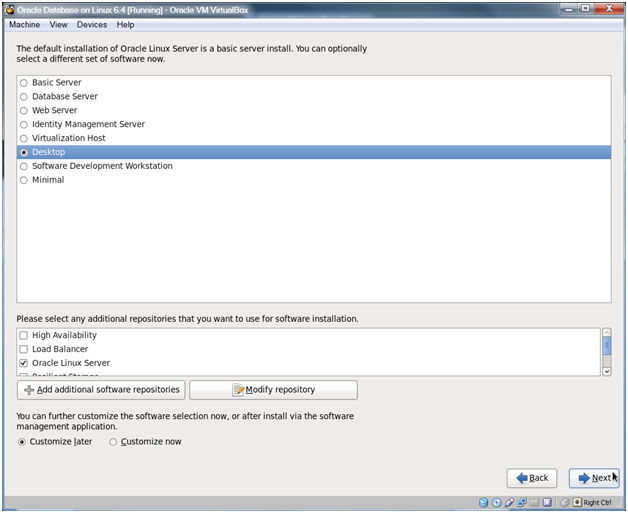
Choose Desktop and click Next.

04-29

The install will take a while.

04-30

Click Reboot.

04-31

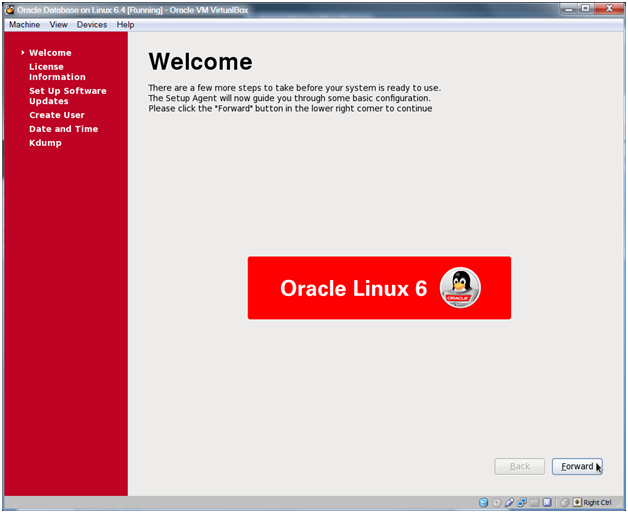
Click Forward.

04-32

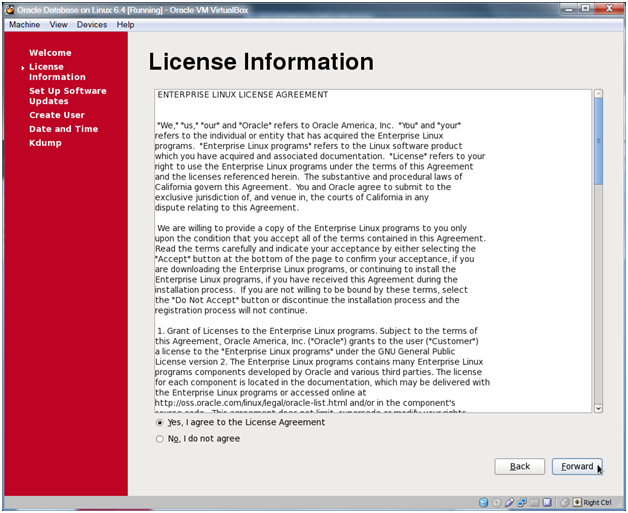
Click Forward.

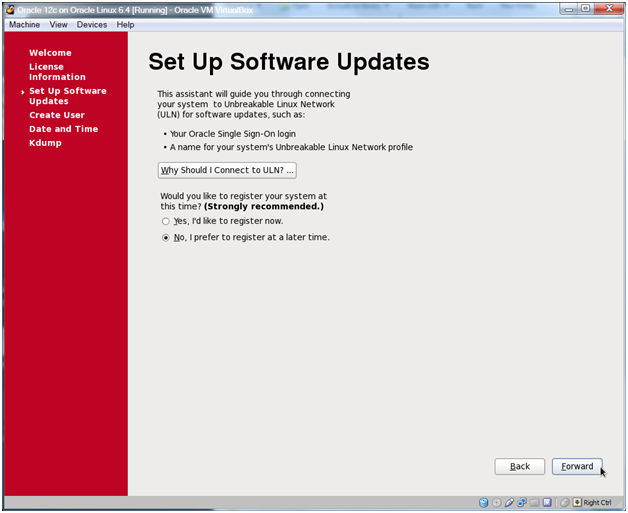
04-33

Choose No, I prefer to register at a later time and click Forward.

Note:

Oracle Linux Network Support for a year is only $119 and can be purchased at shop.oracle.com. This would give you a valid Oracle CSI which would allow you use the Oracle support system which has a ton of resources. If you do get a support license then you can use the Yes, I’d like to register now choice above.

04-34

Click No thanks, I’ll connect later.

04-35

Click Forward.

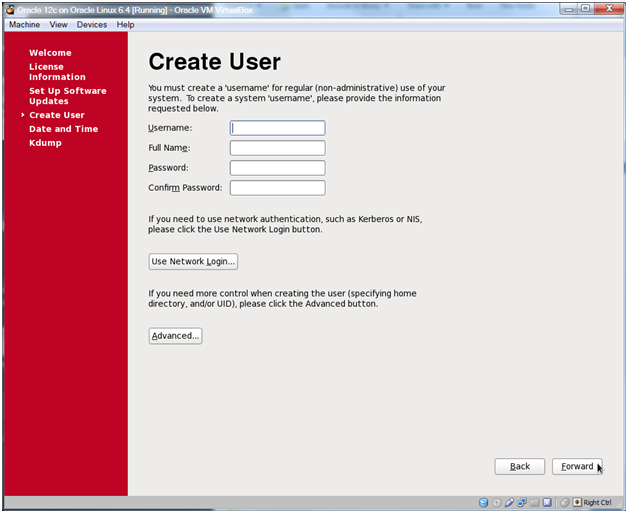
04-36

Click Forward.

Note:

If you decide to create a non-root user here then you’ll have an additional choice at the login screen for the system. You should not create the oracle user here as we’ll be using a specific package from Oracle to create the oracle user.

04-37

Click Yes.

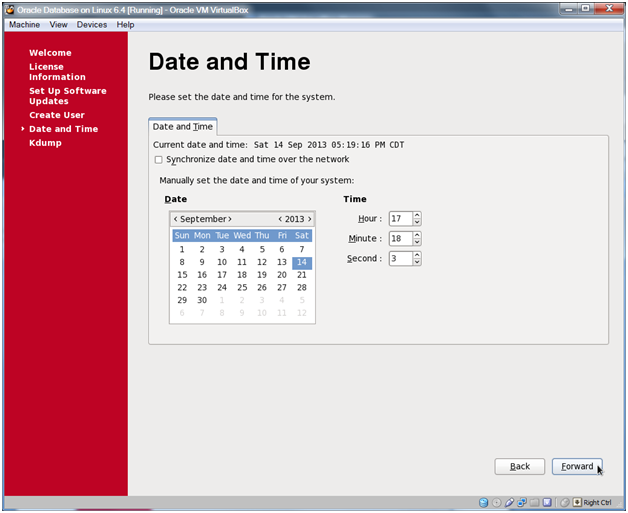
04-38

Set your date and time or choose Synchronize date and time over the network and click Forward.

04-39

Oracle Database 12c on Oracle Linux 6 – Step 3: Configure an Oracle Linux Virtual Machine < Previous Post – Next Post > Oracle Database 12c on Oracle Linux 6 – Step 5: Disable the Firewall, iptables and SELINUX


Oracle Database 12c on Oracle Linux 6 – Step 3: Configure an Oracle Linux Virtual Machine

This is part of this series of posts: Oracle 12c on Oracle Linux 6

In this step we’ll configure a virtual machine that we will install Oracle Linux on in the next step.

03-01

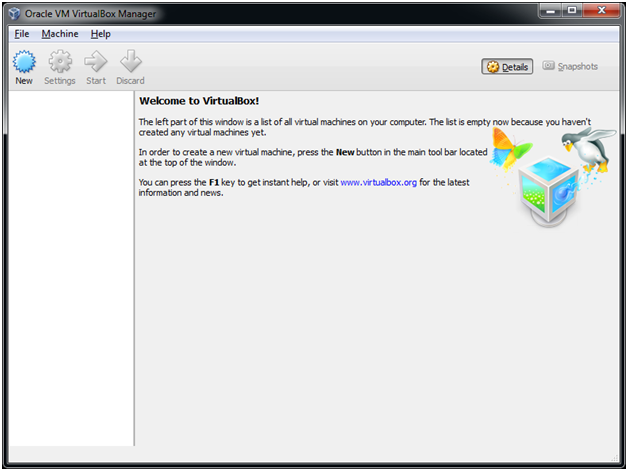
Double click the Oracle VM VirtualBox icon on your desktop.

03-02

Click New to create a new VM.

03-03

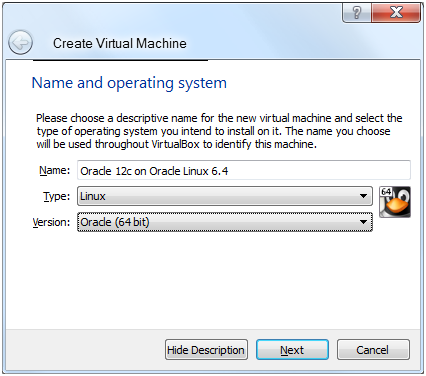
Enter Oracle 12c on Oracle Linux 6.4 as the name, choose Linux for the type and Oracle (64 bit) as the Version.

Note:

Make sure that the Version is Oracle (64 bit) and not just Oracle which ends up getting auto populated for you.

03-04

Enter an amount of memory and click Next.

Note:

Use as much memory as you can on your machine. Since I’ve got 8 GB of RAM, I used 6 GB for the virtual machine. If you use less than 4 GB of memory, you’ll get some warnings during the install of Oracle grid which you can ignore. If you only have 4 GB of RAM total on your machine, then use at least 3 GB for the VM.

If you only have 4 GB of RAM on your machine then it might be better to go with 11g R2 instead of 12c. Some folks have had failures when only 4GB was allocated to the virtual machine.

03-05

Choose Create a virtual hard drive now and click Create.

03-06

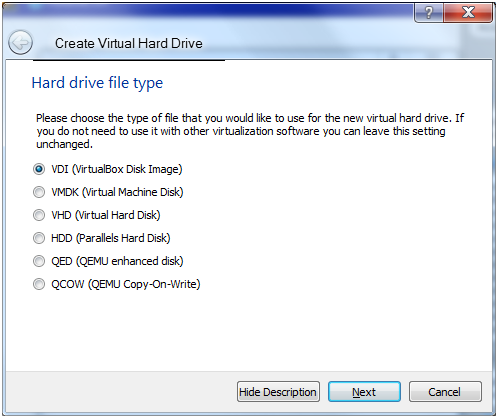
Select VDI (VirtualBox Disk Image) and click Next.

03-07

Choose Dynamically allocated and click Next.

Note:

This is a test system so we’re going to go with dynamically allocated disks. Fixed size disks are faster, but they will take up much more room. Using all the disk sizes presented in the guide, I ended up with 40.5 GB of used space for the VM by the end of the install.

03-08

Change the size to 100 GB and click Create.

Note:

When entering the size in the box (much easier than using the slider) you have to add the GB at the end of your 100 to get 100 GB. If you don’t put the GB you’ll end up with 100 MB which won’t work.

03-09

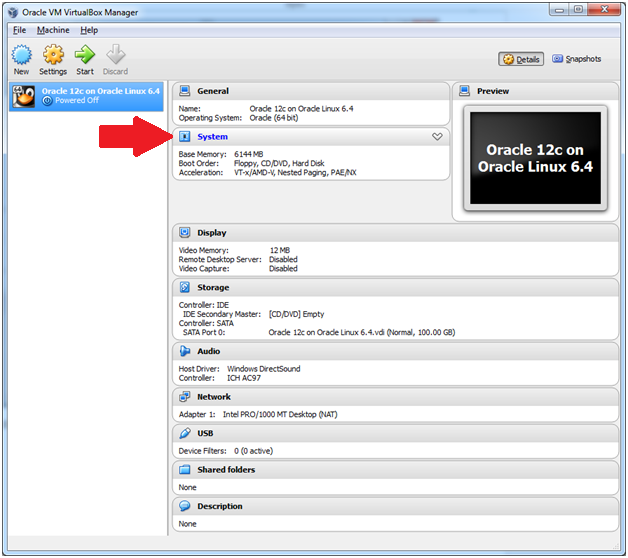
Click the word System in the details pane to bring up the System dialog box.

03-10

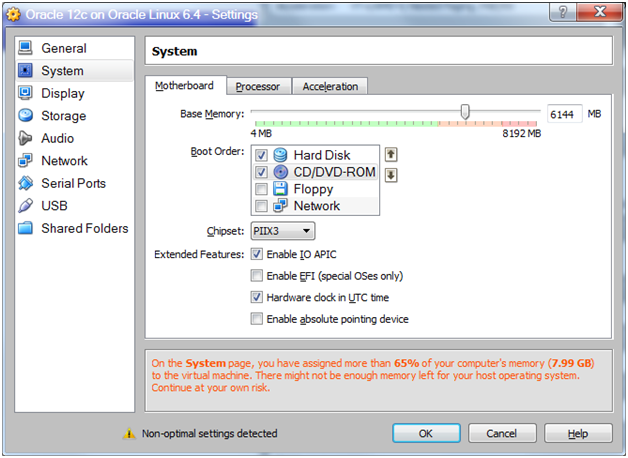
Remove the Floppy (uncheck) and optionally change the order of the Hard Disk and the CD/DVD-ROM.

03-11

Click the Processor Tab and enter the number of processors.

Note:

Ideally you can set this to be as many physical cores as there are on your CPU(s), I chose 4.

03-12

Click the Acceleration tab and confirm that the two boxes are checked.

Note:

Remember that your processor has to support these features.

03-13

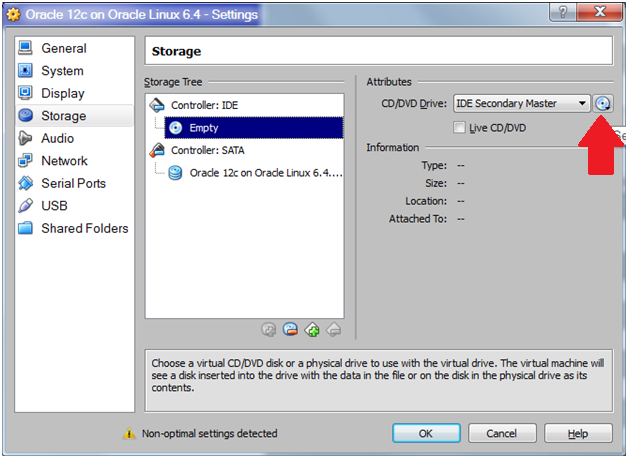
Select the Storage choice on the left hand side of the dialog and then select Empty below the Controller: IDE and then click the disk icon in the Attributes section.

03-14

Navigate to your Downloads folder, select the Oracle Linux 6.4.iso file and click Open.

03-15

You should see the Oracle Linux 6.4.iso under the Controller: IDE.

03-16

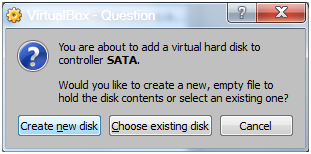
Select Controller: SATA in the Storage Tree and click on the Add Hard Disk icon (the one on the right).

03-17

Click Create new disk.

03-18

Choose VDI (Virtual Disk Image) and click Next.

03-19

Choose Dynamically allocated and click Next.

03-20

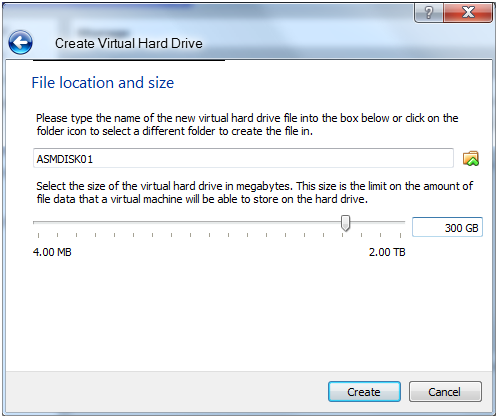
Name the disk ASMDISK01 and change the size to 300 GB.

Note:

300GB is big, but using Oracle 12c Oracle now requires 22 GB to install a container DB with a pluggable DB. 300 GB is also a common size for fast 15K hard drives, so I went with 300 GB. Since these are dynamically allocated disks, they are not going to take up 300 GB each. If you decided to go the fixed disk route, then you’ll need to make these about 12 GB each.

03-21

Repeat the previous ASM disk creation steps 12 more times changing the disk names to ASMDISK02 to ASMDISK13.

Note:

We really only need this many disks to follow the Oracle training (for 11g classes). 8 gives us 4 each for the +DATA and +FRA disk groups which would be more than enough.

03-22

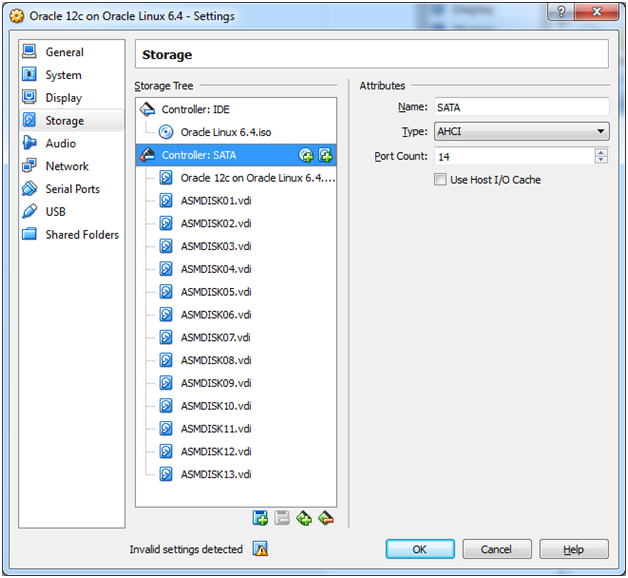
When finished you should have a storage configuration that looks like the above. Click OK.

Oracle Database 12c on Oracle Linux 6 – Step 2: Download the Oracle Linux 6.4 iso < Previous Post – Next Post > Oracle Database 12c on Oracle Linux 6 – Step 4: Install Oracle Linux in the Virtual Machine


Oracle Database 12c on Oracle Linux 6 – Step 2: Download the Oracle Linux 6.4 iso

Part of this series of posts: Oracle Database 12c on Oracle Linux 6

In this step we’ll grab Oracle Linux from the eDelivery site. Note that you could see a different (more recent) version and give that a try if you’d like. I used 6.4 and it worked just fine.

02-01

Using your browser, go to http://edelivery.oracle.com/linux and click Sign In/Register.

Note:

There are two different Oracle Software Delivery Cloud sites. One is for Oracle Linux and Oracle VM, the other if for everything else Oracle. Make sure to add the /linux to the eDelivery url or you’ll end up in the wrong place.

02-02

Enter your Oracle.com Username and Password and click Sign In.

Note:

If you didn’t sign up for an Oracle.com account yet, click the Sign Up button and complete the registration process.

02-03

Check both agreement terms and click Continue.

02-04

Choose Oracle Linux for Select a Product Pack and x86 64 bit for Platform and click Go.

02-05

Click the Oracle Linux Release 6 Update 4 Media Pack for x86_64 (64 bit) link.

Note:

If, by the time you read this, there is a later version of the Oracle Linux media, feel free to give it a try. As long as it’s a higher release than 6.4, it probably should work. If it doesn’t just look for the 6.4 version and use that.

02-06

Click the Download button for Oracle Linux Release 6 Update 4 for x86_64 (64 bit).

02-07

Chose Save File and click OK.

02-08

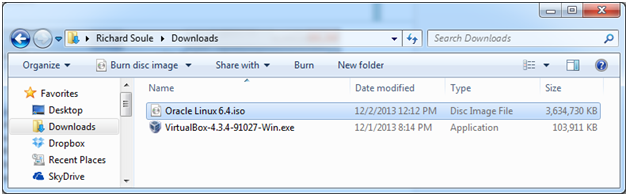
Using Windows Explorer, open your Downloads folder and find the V37084-01.iso file.

Note:

The name of the file could be different if you’ve used a later version of the file. Adjust accordingly.

02-09

Change the file name to Oracle Linux 6.4.iso.

Oracle Database 12c on Oracle Linux 6 – Step 1: Download and Install Oracle VirtualBox and Oracle VirtualBox Extension Pack < Previous Post – Next Post > Oracle Database 12c on Oracle Linux 6 – Step 3: Configure an Oracle Linux Virtual Machine


Oracle Database 12c on Oracle Linux 6 – Step 1: Download and Install Oracle VirtualBox and Oracle VirtualBox Extension Pack

Part of this series of posts: Oracle Database 12c on Oracle Linux 6

Step 1 tends to change a bit between versions of VirtualBox. While the basic steps are pretty close, when the Windows UAC popups appear and some of the dialog boxes change a bit. Basically we’re going to download the software and walk through the wizards clicking next and then download the extension pack. Below is the latest install that I did.

Image

Open Firefox and go to http://virtualbox.org.

Image

Click the Downloads link.

Image

Click the x86/amd64 link.

Image

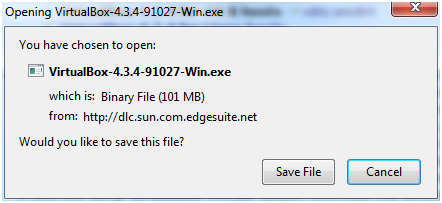
Click Save File.

Image

Open Windows Explorer and navigate to your Downloads directory and double-click the file you just downloaded. Note that it’s OK if the version number is different.

Image

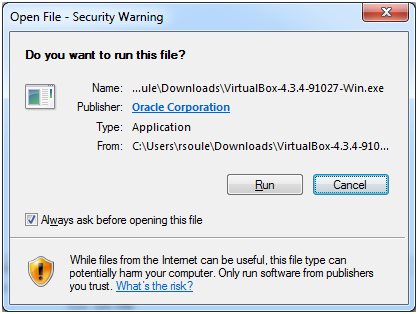
Click Run.

Image

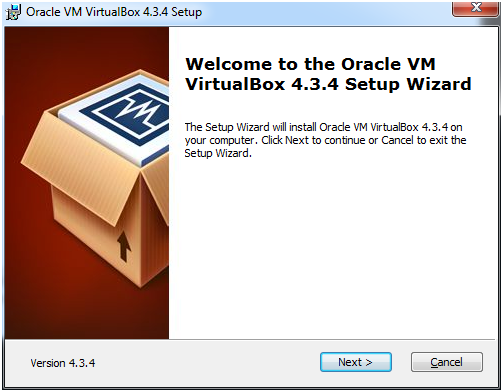
Click Next.

Click Next.

Image

Click Next.

Image

Click Yes.

Image

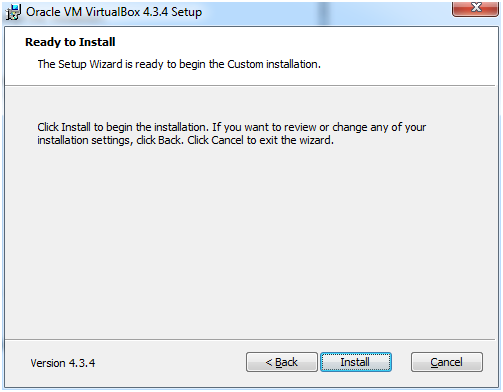
Click Install. At this point I got a Windows UAC popup which I accepted. Depending on your settings you may or may not get one.

Image

Check Always trust software from “Oracle Corporation”, and click Install.

Image

Uncheck the Start Oracle VM VirtualBox 4.3.4 after installation and click Finish.

Image

Back in your browser, click the All supported platforms link for the Extension Pack.

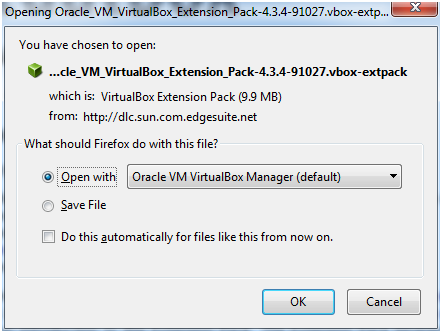
Image

Click OK.

Accept the warning if it appears.

Image

Click Install.

Image

Scroll down to the bottom of the license agreement and click I Agree. I got a Windows UAC popup which I accepted.

Image

Click OK.

You’re done with the Oracle VM VirtualBox installation.

Oracle Database 12c on Oracle Linux 6 – Assumptions <- Previous Post – Next Post > Oracle Database 12c on Oracle Linux 6 – Step 2: Download the Oracle Linux 6.4 iso


Oracle Database 12c on Oracle Linux 6 – Assumptions

Part of this series of posts: Oracle Database 12c on Oracle Linux 6

Assumptions

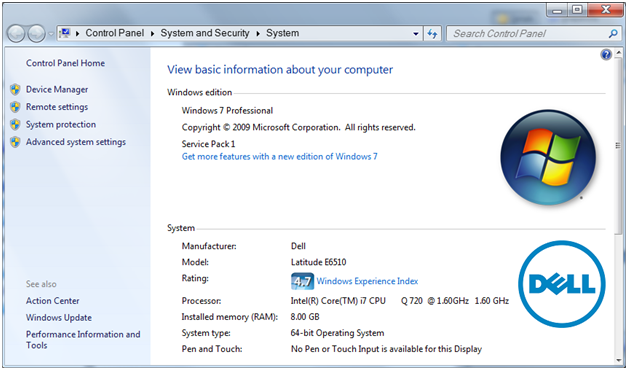
  1. You have 64 bit Windows 7 on a 64 bit computer with at least 4 GB of RAM (preferably more) and at least 60 GB of free disk space. Note that it appears that Database 12c is really going to need quite a bit of memory, so 6 GB or more for the virtual machine would be ideal. Database 11g R2 worked with 4 GB.
  2. You have a network connection.
  3. You have an Oracle.com user account. If you don’t, just go to Oracle.com and click on the register link and follow the registration process.
  4. You have a CPU that supports VTx/AMD-v hardware acceleration and you have enabled hardware acceleration in your system bios. If you have not done this yet, google ‘Enabling VTx/AMD-v on a <Your machine type, for example Dell> <Your machine model number> to learn how to boot into your bios, enable the feature and then save and reboot your machine.

Here’s my system description. While it’s a few years old, it’s not a bad system with 8GB of RAM and a 4 core processor with 8 threads.

00 - Introduction 01


Oracle Database 12c on Oracle Linux 6 – Introduction < Previous Post – Next Post > Oracle Database 12c on Oracle Linux 6 – Step 1: Download and Install Oracle VirtualBox and Oracle VirtualBox Extension Pack


Oracle Database 12c on Oracle Linux 6 – Introduction

Part of this series of posts: Oracle Database 12c on Oracle Linux 6

My name is Rich Soule. I work as an Enterprise Solution Architect for RFD & Associates a Principal at C2 Consulting (starting in 2015) helping people architect and build hardware and software solutions to business problems, often with Oracle technology. I also teach the Oracle Database Certified Professional curriculum at Austin Community College. I put together this document to help people build Oracle database test systems and/or classroom/learning environments.

We used to build test systems on actual test computers (and we still do sometimes depending on what you are testing) but virtualization technology makes building test systems a breeze, so it is often leveraged for test systems today. When Oracle acquired Sun they also acquired VirtualBox, a free tool for building virtual machines. We’re going to use Oracle VirtualBox for this installation, but you could just skip the VirtualBox portion and use the guide to build an Oracle Linux desktop system on physical hardware if you wish.

Some notes:

Passwords – After doing demos for many years, I learned that it’s very hard to forget a password for a demo/test system if the password is always the same as the username. Thus the password for root ends up being root and the password for oracle ends up being oracle. In the administrative world we call these accounts ‘Joes’. Joes are highly unsecure and should never be used for any type of production system, nor should they be used for test systems where security matters. If security doesn’t matter, then Joes are perfect. When it comes to creating database passwords, Oracle Database 12c doesn’t let you do that out of the box so we’ll be using (at least initially) oracle_4U as the password for all oracle accounts (although I might advise you to turn them into Joes later).

Test – Yep, this is a document for building a test system and not even a real test system, but instead just a system that you can use to test out various features of Oracle or maybe as a classroom environment. In no way am I suggesting that you use these exact steps to build a production system although you’ll probably want to leverage quite a bit of the knowledge gained in your own systems. Just make sure that you are following best practices, especially as it relates to security.

Windows 7 – This guide was developed on my Windows 7 computer. I’m not sure if this will work on Windows 8 or any other host OS for that matter. It might, it might not. Remember that Microsoft added in a bunch of ‘security’ stuff to Windows so from time to time during the install process you may get User Access Control windows that pop up. I just accept whatever changes are going to be made. Obviously you’ll need administrative privileges on your computer to do this install.

Firefox – I used Firefox 24 during the Windows portion of this install. If you are using a different browser (Chrome, IE, or an older version of Firefox, or even something else), you’ll have to adjust what you’re doing to fit your browser of choice.

Screenshots – Some of them may be just a bit different than what you’ll see. I had already installed VirtualBox and built other VMs. Also I moved some of the screen shots around and took screen shots on different days, so ignore the time changes and background color changes that may pop up from time to time.

Oracle Database 12c on Oracle Linux 6 < Previous Post – Next Post > Oracle Database 12c on Oracle Linux 6 – Assumptions


Oracle Database 12c on Oracle Linux 6

Rich Soule’s Complete Step-by-Step Guide to building a classroom environment by Installing and Configuring Oracle Database 12c with pluggable databases on Oracle Linux 6 using the Oracle Unbreakable Kernel on Oracle VM Virtualbox with Oracle Restart, Oracle ASM, Oracle SQL Developer, Enterprise Manager Database Express, Oracle Virtualbox Extensions, and rlwrap for Oracle command line tools.

This is round two of this document… I originally started this a few years ago, but this time I’m going to finish posting everything.

This series consists of the following posts:


Next post > Oracle Database 12c on Oracle Linux 6 – Introduction


Using Oracle VirtualBox to create an Oracle Education classroom environment

Update from April 2014: This post has been superseded by this post: Oracle Database 12c on Oracle Linux 6


I created this blog last year so I could write down the steps taken to create an Oracle Education classroom environment using Oracle VirtualBox. I teach Oracle Education classes for Austin Community College (ACC) and also for RFD & Associates, Inc. under a program called the Workforce Development Program. You can see my previous blog post for a description of the Workforce Development Program. Tomorrow I’m teaching a class at ACC to do all of the below with my students from the DBA I and DBA II courses plus a special guest, so I thought it was finally time to start getting this all down.

There are a number of steps to create the classroom environment. Over the next few weeks I intend to write a post for each of the steps. As each post is written, I’ll update each step in the list below to point to those posts.

Here’s the steps that I took to create the classroom environment:

  1. Download and install Oracle VirtualBox including the Extension Pack.
  2. Download the Oracle Linux ISO from edelivery.oracle.com/linux.
  3. Create a virtual machine running Oracle Linux.
  4. Create a local yum repository from the DVD content and add asmlib downloaded from linux.oracle.com.
    While you could just use an online repository instead of a local repository, the local repository allows you to install RPMs even if you are not connected to a network. I find this is nice from time to time, and we are more worried about the Oracle Database than we are about having the most up to date Linux environment.
  5. Install asmlib, asmsupport, and the oracle-validated RPMs and create the required directories including a stage directories for Oracle Grid Infrastructure and Oracle Database.
    We’re also going to make the Linux User IDs and Group IDs match the training material.
  6. Install Oracle VirtualBox Guest Additions.
  7. Install rlwrap.
    Optional, but oh so nice.
  8. Create the ASM disks and then configure and start ASM.
  9. Configure the Oracle user’s environment including a really nice login.sql script.
  10. Download Oracle Grid Infrastructure and Oracle Database 11g R2.
  11. Install Oracle Grid Infrastructure and create a +FRA (Fast Recovery Area) disk group in addition to the +DATA disk group.
  12. Install the Oracle Database software.
  13. Use the Database Creation Assistant to create a Database instance.

If you follow the above steps, you’ll have a training environment that matches the Oracle training material for the majority of  the Oracle Database Administrator training classes (but not all, for instance the Real Application Clusters or RAC class is obviously a bit different).


Thoughts on my install of Oracle Restart, Oracle Automatic Storage Management and Oracle Database 11g R2 on 64 bit Windows 2008

Last week I spent some time with a client installing Oracle on their production servers. I’ve done lots of installs using Unix/Linux, but it had been a long time since I had done anything on Windows. Windows is supposed to be a whole lot easier than Linux, right?

We started by formatting the database storage disks into two sections, using the inner cylinders for our planned Fast Recovery Area (+FRA) and then the outer cylinders for the database data files (+DATA). Of course we formatted the disks and gave them nice descriptive names, only to find out later that although you format the ASM disks on Linux/Unix, you don’t format them on Windows. Windows wants raw disks. Which makes sense because NTFS really isn’t the greatest…

Once we finished formatting the disks the correct way, we went ahead and created the oracle user and added oracle to the Administrators group. We then installed the Grid Infrastructure and created the DATA disk group for ASM. Once the install was finished we went ahead and added the FRA disk group. With everything in place, the next step was to install the database.

There were two tricks during the database install, one we found by reading the release notes and install documentation, and the other we ended up not discovering until the next day. The first trick is that even though the oracle user was a member of the Administrators group, you should still right click on the cmd.exe icon and choose Run as administrator from the context menu. Everything progressed along nicely until we go to the portion where the Database Configuration Assistant tried to create the database. DBCA gave us the following warning:

Database Configuration Assistant: Warning
PRCR-1006: Failed to add resource ora.orcl.db for null
PRCR-1071: Faild to register or update resource ora.orcl.db
CRS-0245: User doesn't have enough privilege to perform the operation.

That seems strange… oracle is a member of the Administrators group and we started dbca from an Administrative command prompt, why are we getting this warning? It doesn’t look like a good warning, but it was just a warning, so let’s continue and see what happens… After a few more warnings dbca completed, but it was obvious that the installation didn’t work correctly. We used the new oracle deinstall command for Windows and gave the install another shot, only to run into the same errors. This time we decided to see what Google had to say. Searching for those errors didn’t turn up much help in the Windows world. Most folks who have seen those errors before were using Linux and they were having problems with the required groups. Nobody else seemed to be running into those errors on Windows… After asking around a bit and doing some more searching, we decided to take a step back and review everything to make sure we on track. Step 1: Make sure oracle is in the Administrators group. Imagine our surprise to find out that oracle wasn’t a member of Administrators! I was positive that we’d done this first thing in the morning, but apparently we hadn’t. Did I click Cancel instead of OK or something? Who knows… but at least we figured out why the install was working. After adding oracle (back?) into the Administrators group, everything worked just fine. We finished up the install and started getting the database ready for the migrated content from the old system which took us to the end of the day.

The next day we logged into Enterprise Manager Database Control (EM) and attempted to create some export directories using EM. We’d already stored the credentials for the oracle user in EM but for some reason they were no longer working. That’s strange, why not? It was working just fine yesterday… We did some testing and found out that we could configure EM with a different Administrator account and things would work, but not oracle. What was going on? It didn’t make any sense at all! OK: Start at the beginning. Step 1: Check to make sure that oracle is a member of the Administrators group. This time I have to say that I wasn’t as surprised as I was the first time when I saw that oracle was no longer a member of the Administrators group, but I was still curious as to what was happening. I turned to the network administrator only to see a very sheepish grin on his face. It turns out that the organization had configured a domain rule to remove administrator privileges from unknown users. This would run a couple of times a day and we had run into in the middle of the day during our first install and again on our second day. Once we fixed this by adding oracle to the list of known administrators, everything worked just fine again.

So, lessons learned:

  1. ASM on Windows uses raw storage.
  2. Run your cmd commands as administrator.
  3. Make sure there are no funky domain rules to remove administrator privileges from oracle!

My hope is that the next person who runs into this on Windows finds this post. Maybe not… but at least I’ll never forget as writing the blog post and having the experience of the install gives me a better chance of remembering this in the future.