Tag Archives: Oracle Linux

Oracle Database 12c on Oracle Linux 6 – Introduction

Part of this series of posts: Oracle Database 12c on Oracle Linux 6

My name is Rich Soule. I work as an Enterprise Solution Architect for RFD & Associates a Principal at C2 Consulting (starting in 2015) helping people architect and build hardware and software solutions to business problems, often with Oracle technology. I also teach the Oracle Database Certified Professional curriculum at Austin Community College. I put together this document to help people build Oracle database test systems and/or classroom/learning environments.

We used to build test systems on actual test computers (and we still do sometimes depending on what you are testing) but virtualization technology makes building test systems a breeze, so it is often leveraged for test systems today. When Oracle acquired Sun they also acquired VirtualBox, a free tool for building virtual machines. We’re going to use Oracle VirtualBox for this installation, but you could just skip the VirtualBox portion and use the guide to build an Oracle Linux desktop system on physical hardware if you wish.

Some notes:

Passwords – After doing demos for many years, I learned that it’s very hard to forget a password for a demo/test system if the password is always the same as the username. Thus the password for root ends up being root and the password for oracle ends up being oracle. In the administrative world we call these accounts ‘Joes’. Joes are highly unsecure and should never be used for any type of production system, nor should they be used for test systems where security matters. If security doesn’t matter, then Joes are perfect. When it comes to creating database passwords, Oracle Database 12c doesn’t let you do that out of the box so we’ll be using (at least initially) oracle_4U as the password for all oracle accounts (although I might advise you to turn them into Joes later).

Test – Yep, this is a document for building a test system and not even a real test system, but instead just a system that you can use to test out various features of Oracle or maybe as a classroom environment. In no way am I suggesting that you use these exact steps to build a production system although you’ll probably want to leverage quite a bit of the knowledge gained in your own systems. Just make sure that you are following best practices, especially as it relates to security.

Windows 7 – This guide was developed on my Windows 7 computer. I’m not sure if this will work on Windows 8 or any other host OS for that matter. It might, it might not. Remember that Microsoft added in a bunch of ‘security’ stuff to Windows so from time to time during the install process you may get User Access Control windows that pop up. I just accept whatever changes are going to be made. Obviously you’ll need administrative privileges on your computer to do this install.

Firefox – I used Firefox 24 during the Windows portion of this install. If you are using a different browser (Chrome, IE, or an older version of Firefox, or even something else), you’ll have to adjust what you’re doing to fit your browser of choice.

Screenshots – Some of them may be just a bit different than what you’ll see. I had already installed VirtualBox and built other VMs. Also I moved some of the screen shots around and took screen shots on different days, so ignore the time changes and background color changes that may pop up from time to time.

Oracle Database 12c on Oracle Linux 6 < Previous Post – Next Post > Oracle Database 12c on Oracle Linux 6 – Assumptions


Oracle Database 12c on Oracle Linux 6

Rich Soule’s Complete Step-by-Step Guide to building a classroom environment by Installing and Configuring Oracle Database 12c with pluggable databases on Oracle Linux 6 using the Oracle Unbreakable Kernel on Oracle VM Virtualbox with Oracle Restart, Oracle ASM, Oracle SQL Developer, Enterprise Manager Database Express, Oracle Virtualbox Extensions, and rlwrap for Oracle command line tools.

This is round two of this document… I originally started this a few years ago, but this time I’m going to finish posting everything.

This series consists of the following posts:


Next post > Oracle Database 12c on Oracle Linux 6 – Introduction


How to get the Oracle Linux ISO from Oracle’s Software Delivery Cloud

Update from April 2014: This post has been superseded by this post: Oracle Database 12c on Oracle Linux 6


This is Step 2 in my 13 step process for creating an Oracle Education classroom environment using VirtualBox.

Here’s the previous step, Installing Oracle VirtualBox on Windows 7.

In this step we are going to get the Oracle Linux ISO from Oracle’s official Software Delivery Cloud called eDelivery. There are actually two Oracle Software Delivery Clouds (or at least two sections), one if for Oracle’s general software, and the other is for Oracle Linux, Oracle Virtual Machine and Oracle Virtual Machine templates. You reach the first site (we’ll go there later) at  http://edelivery.oracle.com and you reach the second (the one we are going to us now) by going to http://edelivery.oracle.com/linux. (Note the extra /linux on the end.)

We’ll actually be using the Oracle Linux 5.8 DVD image, not the Oracle Linux 6.3 image that is currently available (at the time of this writing). While Oracle Linux 6 is now certified for the Oracle Database, Oracle has yet to release some of the nice scripts (oracle-validated for example) for Oracle Linux 6. Oracle is going to be building new scripts (RPMs actually) which instead of being generic Oracle RPMs are instead going to be targeted at specific products like Oracle Database and WebLogic. So we’ll have ‘ oracle-rdbms-server-11gr2-preinstall’ and probably other RPMs for doing all the stuff required to set up the Oracle environment correctly for an Oracle Database install on Linux. But for now, Oracle Linux 5 has the oracle-validated RPM available and since we’re really much more concerned about our Oracle Database environment instead of having the latest and greatest Linux version, we’re just going to stick with Oracle Linux 5.8. Note that if you do decide to go down the Oracle Linux 6.3 path, you’ll also need a different version of Oracle 11g R2, Oracle 11.0.3 which is currently only available from Oracle support.

Let’s get started:

  1. Navigate to https://edelivery.oracle.com and click Sign In / Register.

    Oracle Software Delivery Cloud - Oracle Linux and Oracle VM

    Oracle Software Delivery Cloud – Oracle Linux and Oracle VM

  2. Enter your Username and Password and click Sign In. Obviously if you don’t yet have an Oracle.com account, you can go through the registration process to create one by clicking the Sign Up link.

    Oracle.com Sign In

    Oracle.com Sign In

  3. Agree to both the terms of service and the export restrictions and click Continue.

    Terms and Restrictions Agreement

    Terms and Restrictions Agreement

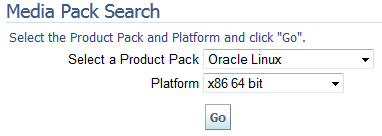
  4. Choose Oracle Linux from the Select a Product Pack drop down and x86 64 bit from the Platform drop down and click Go. If you are installing on a 32 bit system, you can download the 32 bit software.

    Media Pack Search

    Media Pack Search

  5. In the results list find the Oracle Linux Release 5 Update 8 Media Pack for x86 64 (64 bit) link and click it.

    Oracle Linux 5 Update 8

    Oracle Linux 5 Update 8

  6. Click the first Downloadbutton in the Select column to download the ISO for Oracle Linux Release 5 Update 8 for x86_64 (64 Bit).

    Linux 5 Update 8 Download

    Linux 5 Update 8 Download

  7. Click OKto download the ISO.

    Download Dialog

    Download Dialog

  8. Wait for the download to complete. This will take a while depending on the speed of your connection.

    Download Progress

    Download Progress

We’ll be using this ISO image during the install of Oracle Linux. I often move the file to a more appropriate location than my downloads folder, but since we’ll be able to delete the file once we’ve finished with the Linux install it’s not that important to move it. If I decide that I’ll be keeping the file around for other installations, then I rename the file. Oracle_Linux_Release_5_Update_8.iso is a lot easier to figure out months down the road than V31120-01.iso.

Note that even though this is a DVD image that could be burned to DVD, there is no reason to do this as Virtual Box can use the file directly.